Asus Headset Support
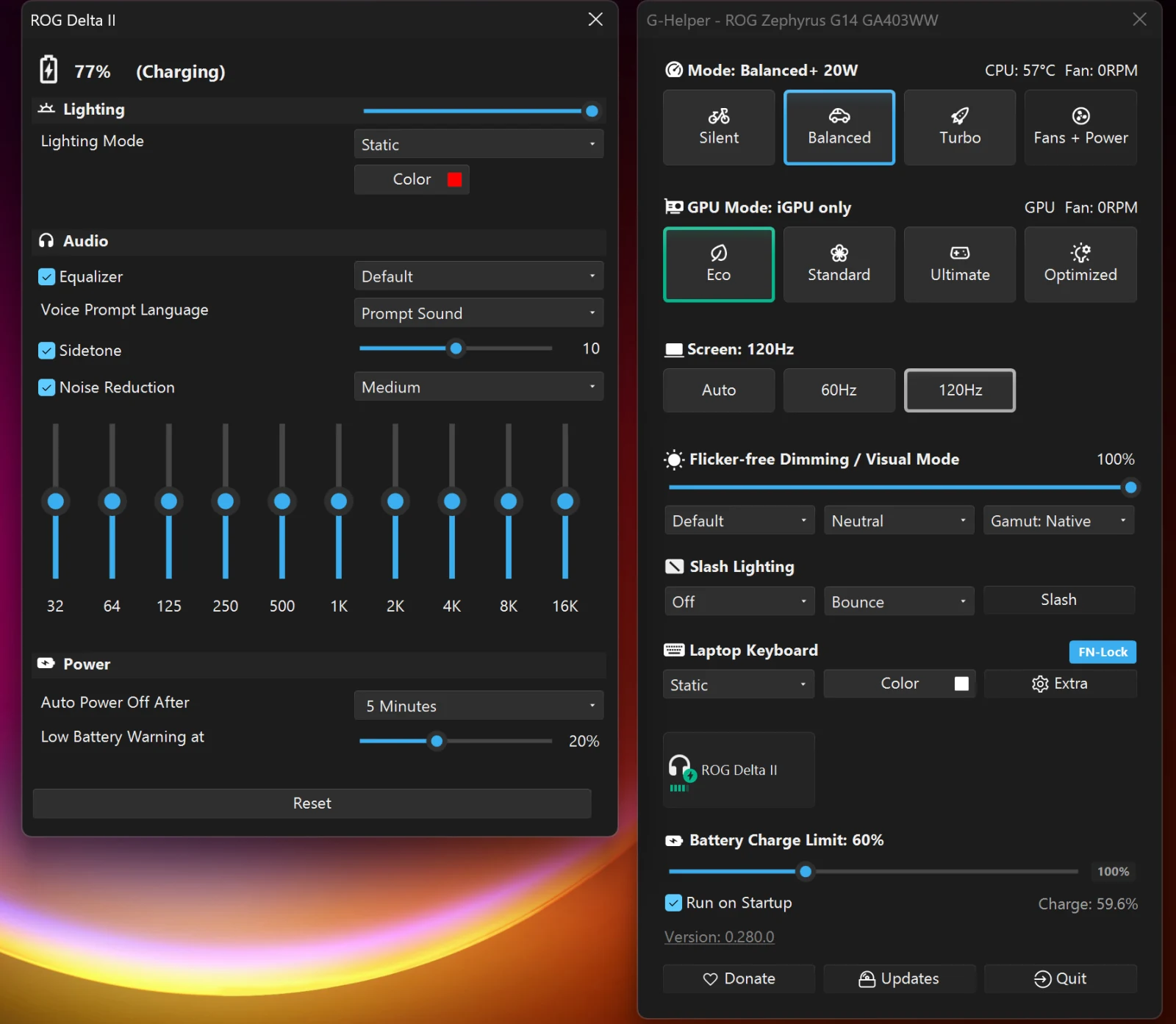
G-Helper also sets up Asus headsets, the same way it does mice and keyboards. Connect a supported headset and a button with its name shows up in the main window. Click it and the headset settings open.
What you can change
Not every headset has everything on this list.
- Lighting: pick a color and an effect, or let the headset follow the lighting on your laptop.
- Sound: an equalizer with ready-made presets (rock, jazz, movie, FPS and more), or move the sliders yourself and save your own.
- Microphone: reduce background noise, and choose how much of your own voice you hear while you talk.
- Noise cancelling: on, off, or let the sound around you through.
- Battery: how much charge is left, in the panel and on the button in the main window.
- Power: switch the headset off when it sits unused, and get a warning when the battery runs low.
- Reset: put everything back the way the headset came.
Which headsets work
| Headset | What you get |
|---|---|
| ROG Delta II, Delta II KJP | Lighting, sound, microphone, battery |
| ROG Pelta | Lighting, sound, microphone, battery |
| ROG Cetra True Wireless SpeedNova | Lighting, sound, noise cancelling, battery for both earbuds and the case |
| ROG Clavis | Lighting and microphone noise cancelling |
| ROG Cetra RGB | Lighting |
Don’t see yours? Ask in the headset discussion or file a device support request.
Good to know
Your settings are saved on the headset itself, so they stay put when G-Helper is closed.
If the headset is connected but no button shows up, close Armoury Crate or any other Asus app. Only one of them can control the headset at a time.