Asus Keyboard Support
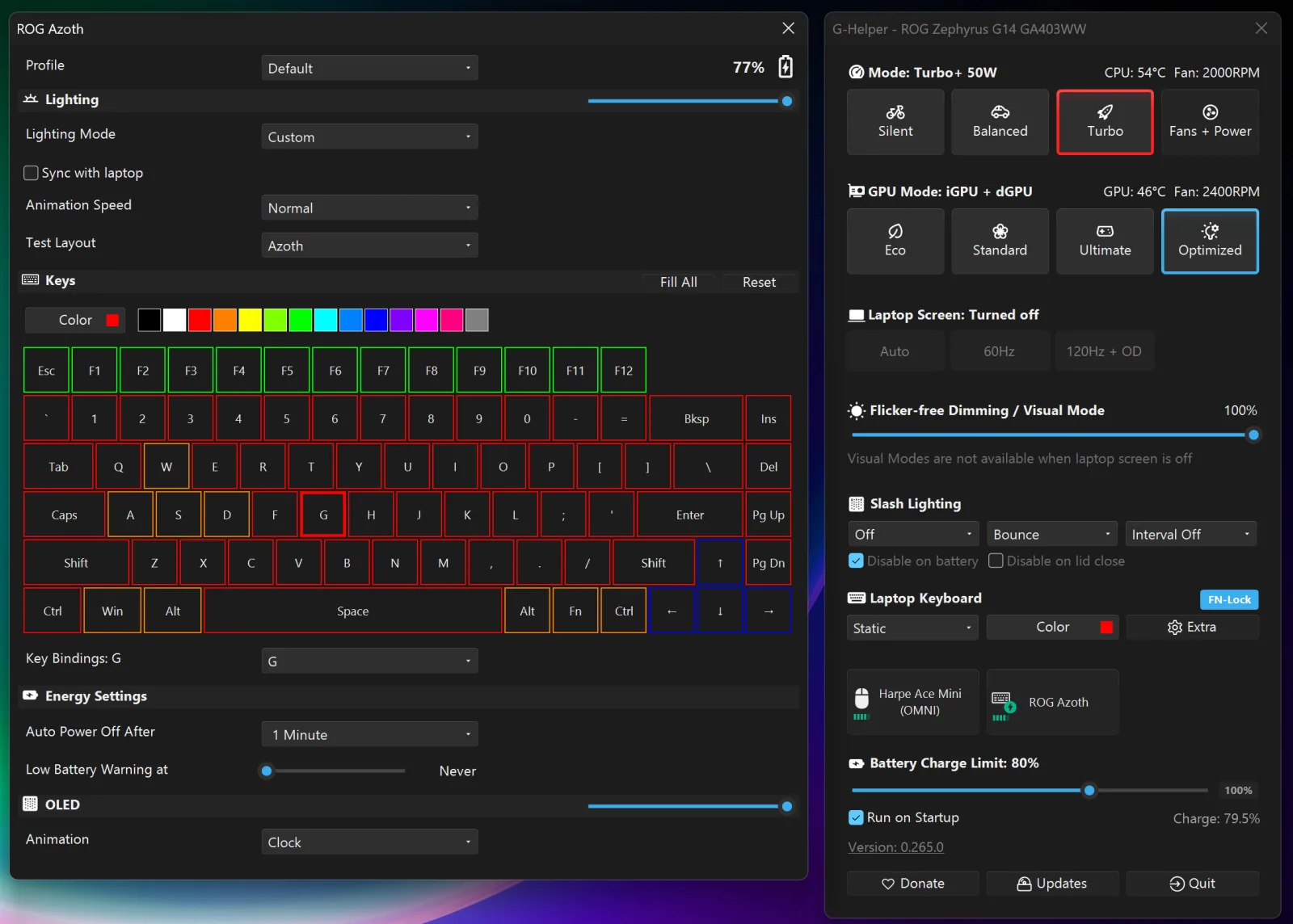
Since version 0.277, G-Helper configures external Asus keyboards the same way it already handles Asus mice. Connect a supported keyboard and a button with its name appears at the bottom of the main window, next to the mouse button if a mouse is also connected. Clicking it opens the keyboard settings, so there’s no need to keep Armoury Crate installed for an external keyboard either.

What you can configure
As with mice, the panel only shows what the connected keyboard actually supports. Wired models have no battery section, the OLED block only appears on keyboards that have a screen, and so on.
Lighting
Hardware animation modes as offered by the keyboard: Static, Breathing, Color cycle, Wave, Reactive, Ripple, Starry night, Quicksand, and Rain drop, with up to three color slots depending on the mode, animation speed, and a brightness slider. Lighting is saved to the keyboard itself, so it persists without G-Helper running.
A sync checkbox mirrors the laptop keyboard’s Aura lighting to the external keyboard. That includes the software effects running on the laptop side, such as Ambient, Heatmap, and the Audio Spectrum / Audio Pulse visualizer modes.
Per-key RGB
Keyboards with per-key backlight get an on-screen layout where individual keys are painted directly: pick a color, click keys (or Fill All), done. A test-layout switcher helps if the detected layout doesn’t match the physical one. The TUF Gaming K1 is the only supported model limited to zone lighting instead of per-key.
Key bindings
Select a key on the same on-screen layout and rebind it from a dropdown. The Claymore II’s dedicated media keys are handled too. A reset button returns everything to defaults.
OLED screen
On Azoth models with a built-in screen, the screen can be switched on or off, its brightness adjusted, and its animation selected.
Energy
Wireless models show the battery charge next to the profile selector, plus an auto power-off timeout and a low-battery warning threshold.
Profiles
On keyboards with onboard profiles, the active profile is switched from the top of the panel.
Supported keyboards
The list below reflects the models with explicit support in the code, per family. Variants (wired / wireless / OMNI) of the same model count as one.
ROG Azoth
- ROG Azoth (USB / Wireless / OMNI)
- ROG Azoth Extreme (USB / OMNI)
- ROG Azoth X (USB / Wireless)
ROG Falchion
- ROG Falchion (USB / Wireless)
- ROG Falchion RX (incl. RX Low Profile)
- ROG Falchion Ace (incl. Ace HFX)
ROG Strix Flare
- ROG Strix Flare
- ROG Strix Flare II (incl. Animate; the AniMe Matrix display itself isn’t driven)
ROG Strix Scope
- ROG Strix Scope II (incl. RX)
- ROG Strix Scope II 96 (incl. RX / Wireless / OMNI)
- ROG Strix Scope RX (incl. RX TKL, wired and wireless)
ROG Claymore
- ROG Claymore II (detachable numpad not mapped yet)
TUF Gaming
- TUF Gaming K1 (zone RGB)
- TUF Gaming K3 (incl. Gen II)
Keyboard support is new as of August 2026, so expect the list to grow. If your model isn’t picked up, or something doesn’t work, leave a note in the external keyboards discussion on GitHub, or file a device support request.
Notes
If a keyboard is plugged in but the button doesn’t appear in G-Helper, make sure no other Asus software (Armoury Crate, Aura) is holding the device. Only one app at a time can talk to the HID interface.
For Asus mice, see the mouse support page. For the laptop side of G-Helper, see the Requirements page.