Asus Mouse Support
If your laptop is from Asus, your mouse probably is too. G-Helper picks up most current Asus mice automatically and exposes their full configuration inside the same app, so you don’t need to keep Armoury Crate (or any other Asus utility) installed just to set DPI, button bindings, or lighting.
External Asus keyboards and Asus headsets get the same treatment, covered separately on the Asus keyboard support and Asus headset support pages.
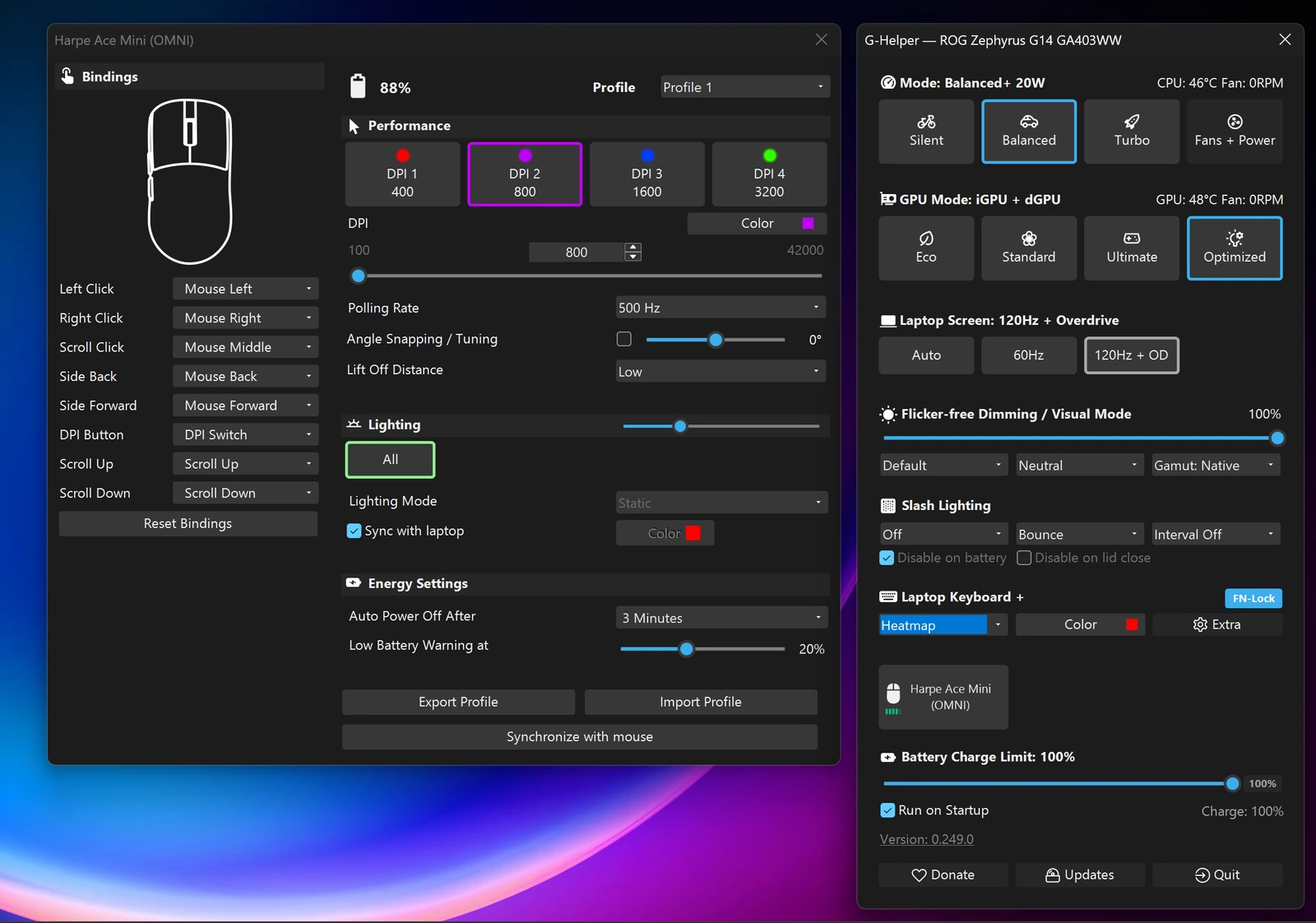
When a supported Asus mouse is connected, G-Helper adds a dedicated button to the main window with the mouse name on it (you can see it at the bottom of the right-hand panel in the screenshot below). Clicking the button opens the mouse settings.
What you can configure
The mouse panel mirrors the configuration surface of Asus’s own software. The exact set of options shown depends on the mouse — wired models won’t have battery sliders, mice without RGB skip the lighting section, and so on. G-Helper queries each device for its capabilities on connect.
Buttons
Every button on the mouse can be rebound: left, right, scroll click, double click, side back / forward, dedicated DPI button, and scroll up / down. Bindings are stored on the mouse itself, so they survive moving between machines.
Besides mouse, keyboard, and multimedia functions, a Combos group offers common shortcuts as one-click bindings: Alt + Tab, Alt + F4, Win + D / E / L / V / Tab, Copy, Paste, Undo, Task Manager, and Minimize All. Combos work through the app (the mouse sends a passthrough key that G-Helper expands into the shortcut), so unlike plain bindings they need G-Helper running.
On mice that support it (currently the Harpe II Ace family) there’s also a Speed Shift layer: assign Speed Shift to a button, and holding that button switches the remaining buttons to a second set of bindings.
DPI
Up to four DPI profiles per mouse, each with its own colour and value. Click any of the four DPI tiles, set the slider (or type the number), and the change is written to the mouse. X and Y can be set independently on models that support it. Maximum DPI varies by sensor — current top-end models go up to 42,000.
Polling rate
Whatever rates the mouse supports, from 125 Hz up to 8,000 Hz on recent models. The ROG Booster unlocks the higher tiers where applicable.
Performance
- Angle snapping with adjustable angle, when the mouse offers it
- Lift-off distance (Low / High)
- Button debounce, from off through 8 ms / 12 ms / 16 ms / 20 ms / 24 ms / 28 ms / 32 ms
- Motion sync
- Acceleration and deceleration sliders on supported sensors
- Zone mode — run the mouse at a different DPI inside a defined screen zone
Lighting
Per-zone (logo, scrollwheel, underglow, dock — whatever the mouse has). Modes available depend on the model and currently include Static, Breathing, Color cycle, Rainbow, Reactive, Comet, Battery state, and Off. Brightness, colour, animation speed, animation direction, and a random-colour toggle are all per-zone. There’s a “Sync with laptop” checkbox that mirrors the laptop’s Aura colour to the mouse.
Energy
- Auto power-off after 1, 2, 3, 5, or 10 minutes (or never) on wireless models
- Low-battery warning threshold
- Optionally, the mouse button in the main window can show the exact charge percentage under the mouse name
Profiles
Up to five hardware profiles per mouse on models that support it. Each profile has its own bindings, DPI tiers, lighting, and so on. Profiles can be exported to a file and imported back, which is useful when reflashing a machine or sharing a setup between two of the same mouse.
Supported mice
This list covers the models with explicit support in the code. In practice newer Asus mice are usually picked up too — if yours isn’t on this list, plug it in and check Extra → Mice before assuming it isn’t supported.
ROG Harpe
- ROG Harpe Ace Mini
- ROG Harpe Ace Aim Lab Edition
- ROG Harpe Ace Extreme
- ROG Harpe II Ace
- ROG Harpe II Extreme Edition 20
ROG Keris
- ROG Keris (incl. EVA Edition)
- ROG Keris Wireless Aimpoint
- ROG Keris II Ace
- ROG Keris II Origin
ROG Gladius
- ROG Gladius II Origin (incl. PNK LTD and Call of Duty editions)
- ROG Gladius II Wireless
- ROG Gladius III
- ROG Gladius III Aimpoint (incl. EVA 2)
ROG Chakram
- ROG Chakram
- ROG Chakram Core
- ROG Chakram X
ROG Strix
- ROG Strix Carry
- ROG Strix Evolve
- ROG Strix Impact
- ROG Strix Impact II (incl. Electro Punk and Moonlight White)
- ROG Strix Impact II Wireless
- ROG Strix Impact III
- ROG Strix Impact III Wireless
ROG Pugio / Spatha
- ROG Pugio
- ROG Pugio II
- ROG Spatha X
TUF Gaming
- TUF Gaming M3 (incl. Gen II)
- TUF Gaming M4 Air
- TUF Gaming M4 Wireless (TX Gaming Mouse, including Mini and Mini Miku Edition variants)
- TUF Gaming M5
ASUS
- ASUS MD200
Wired, wireless, and OMNI variants of the same model count as one.
Notes
The mouse and G-Helper run independently of each other. Settings are written to the mouse’s onboard storage, not to G-Helper. If you uninstall G-Helper later, your bindings, DPI profiles, and lighting stay on the mouse.
If a mouse is plugged in but the button doesn’t appear in G-Helper, make sure no other Asus software (Armoury Crate, Aura) is holding the device. Only one app at a time can talk to the HID interface.
For external Asus keyboards and headsets, see the keyboard support page and the headset support page. For the desktop / laptop side of G-Helper, see the Requirements page.