In-Game Hardware Overlay
G-Helper has a built-in hardware overlay: a small on-screen display that sits on top of your game and shows FPS, temperatures, fan speeds, power draw and load while you play. It covers what most people install a separate monitoring tool for, except it’s already in G-Helper and there’s nothing extra to install.
The FPS counter follows whatever game is in the foreground, so you don’t set anything up per title. Alt-tab between games and it tracks the active one.

What it shows
- FPS of the active game, read from the present queue (DX10/11/12 and Vulkan)
- GPU temperature, in °C
- CPU temperature, in °C
- GPU fan speed, in RPM
- CPU fan speed, in RPM
- GPU power draw, in watts
- CPU power draw, in watts
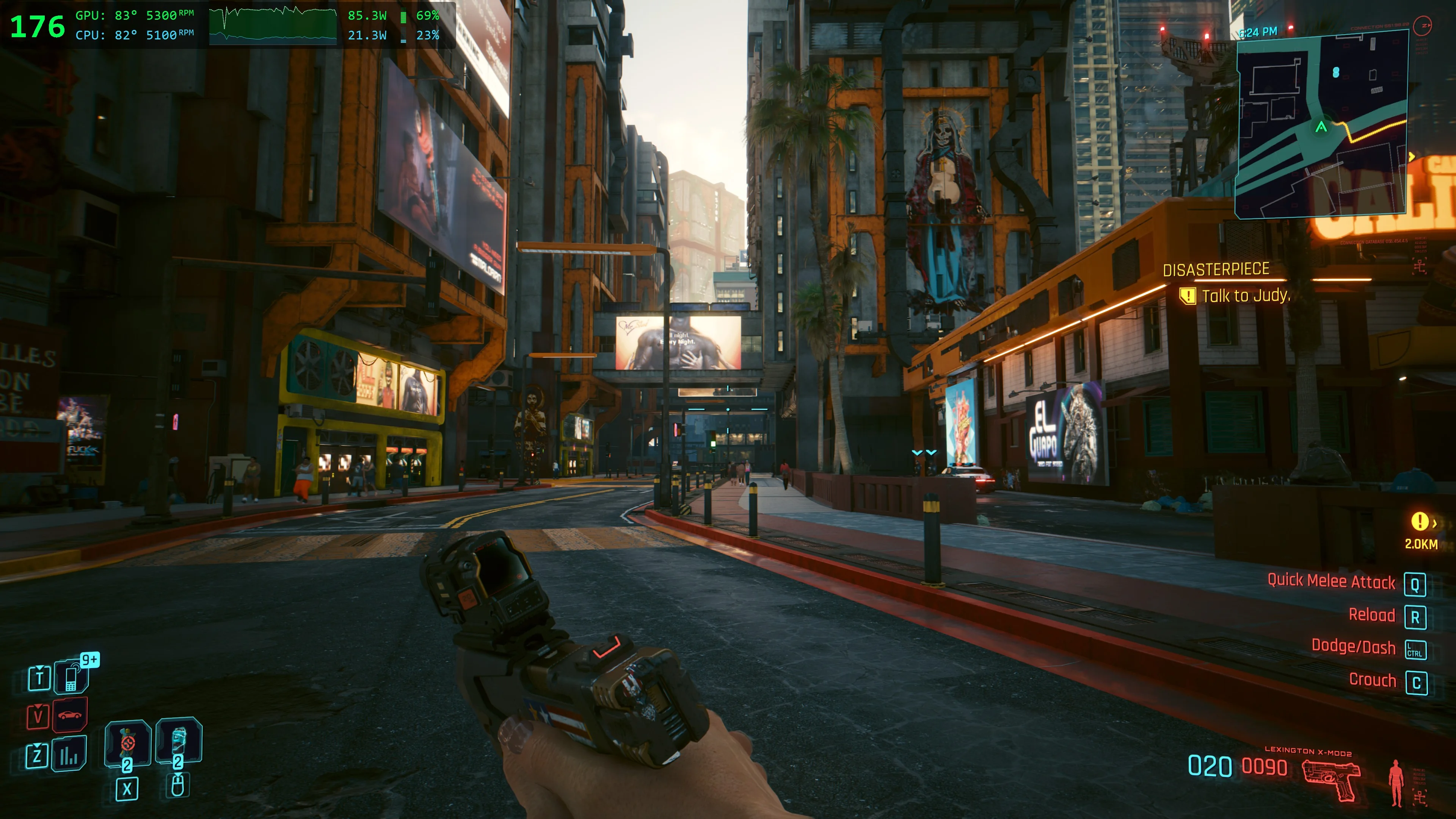
- A stacked chart of the last 60 seconds of CPU and GPU power
- GPU load, as a percentage and a vertical bar
- CPU load, as a percentage and a vertical bar
When the discrete GPU is off (Eco mode or GPU disabled), the GPU temperature reads -- and its power, load and chart are hidden, because the laptop isn’t using it. CPU readings and fan speeds keep updating.
Display modes
Hold Ctrl + Shift + Alt and click the overlay to cycle through three levels of detail, so it takes only as much room as you want:
- Light: FPS, CPU and GPU temperature and power. The most compact.
- Default: adds fan RPM and the power chart.
- Full: adds CPU and GPU load bars and percentages.
The shot above is Full mode, with the load column on the right. Here’s the same overlay running in a game:
Hotkeys
Ctrl + Shift + Alt + O: toggle the overlay on or off. It’s also in the tray(G)icon menu as Hardware Overlay.Ctrl + Shift + Alt + Click: cycle the display mode (Light, Default, Full).Ctrl + Shift + Alt + Drag: move the overlay around the screen.Ctrl + Shift + Alt + Mouse wheel: scale it from 50% to 300%, in 10% steps.Ctrl + Shift + Alt + Middle click: reset the scale to 100%.
To drag or scale, hold the keys with the cursor over the overlay. That’s how it tells a deliberate adjustment apart from the same keys being pressed in a game. The overlay snaps to the nearest corner and keeps its position and size after a restart, a resolution change, or a monitor swap.
The toggle defaults to Ctrl + Shift + Alt + O. Like every G-Helper shortcut you can remap it, and you can also bind the overlay to a custom hotkey action. The full hotkeys reference lists the rest.
Where it works
The overlay draws on DX10 and newer games (DirectX 10/11/12 and Vulkan). Very old games that use exclusive full-screen mode may not show it. Running those in borderless or windowed mode lets it through.
Turning it on
The overlay is in recent G-Helper builds, so grab the latest version first. Then press Ctrl + Shift + Alt + O, or right-click the tray icon and pick Hardware Overlay. Start a game and the stats show up in the corner.