Power User Settings
General Note
“Power user” settings require editing config located at %AppData%\GHelper\config.json.
- Quit G-Helper
- Make your changes / additions co
config.json - Start G-Helper again
Make sure to keep json structure (i.e. not to break it with extra or missing commas, etc.) or the app will fail to read it and will just recreate an empty config instead.
Easiest way to do so - is to add new lines to the beginning of the file
Manual app language setting
By default the app will use your windows language setting. But you can set language manually (if it supported of course)
"language" : "en",
(by replacing “en” with language of your choice)
Custom windows power plans with each mode
You can manually assign a custom power plan GUID to each mode.
Format is following : "scheme_<mode>" : "GUID" Where mode = 0 (balanced), 1 (turbo), 2 (silent)
Note
Use "scheme_usbc_<mode>" : "GUID" to set a separate plan applied only when on a USB-C charger.
GUIDs of windows power plans
- Balanced (default)
381b4222-f694-41f0-9685-ff5bb260df2e - High Performance
8c5e7fda-e8bf-4a96-9a85-a6e23a8c635c - Ultimate Performance (may be not available on some devices)
e9a42b02-d5df-448d-aa00-03f14749eb61
Example Config
- Balanced and Silent mode will use default “Balanced” power plan
- Turbo mode will use “High Performance” :
"scheme_0": "381b4222-f694-41f0-9685-ff5bb260df2e",
"scheme_1": "8c5e7fda-e8bf-4a96-9a85-a6e23a8c635c",
"scheme_2": "381b4222-f694-41f0-9685-ff5bb260df2e",
Separate performance mode for USB-C charger
Remember a different performance mode for a USB-C charger vs. the barrel charger (auto-applied when you connect either).
"usbc_profile" : 1,
Alternative Activation for XG Mobile 6850XT
If you experience a situation when your XG Mobile doesn’t work on full power when Activated. It’s possible it needs an “alternative” command to get activated. To turn it on, add following line to config :
"xgm_special" : 1,
Override UI theme
By default the app would set the UI theme from the “app” theme in Windows setting. You can override it to specific theme, or general windows theme
"ui_mode" : "dark",
"ui_mode" : "light",
"ui_mode" : "windows",
Flat UI theme
Use the older flat button and control style, without the gradient and border styling
"theme" : "flat",
Skip keyboard Aura initialisation on startup
By default the app would set the last remembered RGB mode for the keyboard on each launch. To disable it completely
"skip_aura" : 1,
Ambient mode refresh frequency
Custom refresh interval for Ambient keyboard backlight mode. Default is 300ms
"aura_refresh" : 300,
Limit maximum backlight brightness level
"max_brightness": 1,
Hide unsupported RGB modes
For models that exist in both RGB and non-RGB editions, you can hide unsupported backlight modes
"no_rgb": 1,
Temperatures and Colors for Heatmap mode
To adjust default emperature stages for blue / green / yellow and red colors in RGB Heatmap mode
"temp_freeze": 20,
"temp_cold": 40,
"temp_warm": 65,
"temp_hot": 90,
To adjust default colors for RGB Heatmap mode
"color_freeze": "#0000FF",
"color_cold": "#008000",
"color_warm": "#FFFF00",
"color_hot": "#FF0000",
Colors for GPU Backlight mode
To adjust default colors for GPU Backlight mode
"color_eco": "#008000",
"color_standard": "#FFFF00",
"color_ultimate": "#FF0000",
Audio decay speed
How fast backlight fades down after a beat in Audio mode. Default is 70, lower value = faster fade (100 = no fade at all)
"audio_decay" : 70,
Visual Modes section
To hide and completely disable Visual modes selection
"hide_visual" : 1,
Disable OSD
Disable app’s OSD (for performance modes, keyboard backlight, etc.)
"disable_osd": 1,
Disable GC on closing app windows
"gc" : 0,
Show numeric mouse battery percentage
Show the exact charge percentage next to the graphical battery indicator for connected mice
"mouse_battery": 1,
Rapid Fire delays
Repeat delay in ms per button, used when a mouse button is bound to RapidFire (Toggle) or RapidFire (Hold). 0 turns that button off. Applied at the moment of binding, so re-select the RapidFire binding after changing them.
"mouse_rapidfire_left": 50,
"mouse_rapidfire_right": 0,
"mouse_rapidfire_scroll": 0,
Overlay customization
The hardware overlay reads a few extra options that aren’t in the UI. They are applied once when the overlay starts, so quit and relaunch G-Helper after editing. overlay_names adds a CPU/GPU model name column in every mode; the other show/hide flags only take effect in the Complete size mode (click the overlay to cycle modes).
Colors are hex strings (#RRGGBB), overlay_alpha is the background box opacity from 0 (fully transparent) to 255 (solid black), and each overlay_show_* / overlay_names flag toggles its section (1 on, 0 off). The values below are the defaults:
"overlay_color_cpu" : "#3CDCFF",
"overlay_color_gpu" : "#00FF50",
"overlay_alpha" : 128,
"overlay_names" : 0,
"overlay_show_fps" : 1,
"overlay_show_temp" : 1,
"overlay_show_fans" : 1,
"overlay_show_chart" : 1,
"overlay_show_power" : 1,
"overlay_show_usage" : 1,
"overlay_show_ram" : 1,
"overlay_show_battery" : 0
Disable “Tablet mode” on X13/X16
To disable automatic touchpad toggling when laptop enters / leaves tablet mode
"disable_tablet": 1,
Disable Extra Keybindings
Ctrl + M1 / M2- Screen brightness Down / UpShift + M1 / M2- Backlight brightness Down / UpCtrl + Shift + F20- Mute MicrophoneCtrl + Shift + Alt + F13- Toggle Display Refresh RateCtrl + Shift + Alt + F14- Eco GPU ModeCtrl + Shift + Alt + F15- Standard GPU ModeCtrl + Shift + Alt + F16- SilentCtrl + Shift + Alt + F17- BalancedCtrl + Shift + Alt + F18- TurboCtrl + Shift + Alt + F19- Custom 1 (if exists)Ctrl + Shift + Alt + F20- Custom 2 (if exists)
If you don’t want this bindings to work you can add
"skip_hotkeys":1,
Toggle Performance Mode or Toggle App Window key binding
To change binding for Toggle Performance Modes forward / backward from Ctrl + Shift + F5 / Ctrl + Shift + Alt + F5 to Ctrl + Shift + KEY / Ctrl + Shift + Alt + KEY
"keybind_profile": 116,
To change binding for Toggle App Window from Ctrl + Shift + F12 to Ctrl + Shift + KEY
"keybind_app": 123,
To change binding for Toggle Hardware Overlay: Ctrl + Shift + Alt + O to Ctrl + Shift + Alt + KEY
"keybind_overlay": 79,
Where NUMBER (like 116) is numerical code for desired key.
Put 0 to completely disable this binding.
Keybinding modifier keys
By default most of keybindings are using either Ctrl + Shift or Ctrl + Shift + Alt keys.
They can be changed to any combo of the following keys : “win”, “control”, “alt”, “shift”
  "modifier_keybind": "win-control",
  "modifier_keybind_alt" : "win-control-alt",
Higher Maximum and Minimum GPU Clock / Memory Offsets
By default under the GPU section you can set up to +250/+250 for Core and Memory Clock Offset. To increase this value:
  "max_gpu_core": 300,
  "max_gpu_memory": 1500,
  "min_gpu_core": -300,
  "min_gpu_memory": -1500,
Reapply CPU temp limit & power on a timer
Some AMD CPUs can silently reset the CPU temperature limit under load, so the app can reapply your temp limit and Ryzen power settings every 30 seconds on those models.
"reapply_time" : 30,
Custom CPU Temp Limit
To override minimum AMD CPU Temperature limit set :
"min_temp" : 50,
Custom CPU Undervolting Limit
To override minimum (or maximum) AMD CPU Undervolting / Overvolting values:
"min_uv" : -40,
"max_uv" : 0,
To override minimum (or maximum) AMD iGPU Undervolting / Overvolting values:
"min_igpu_uv" : -40,
"max_igpu_uv" : 0,
Per-core CPU Undervolting
To set individual AMD Curve Optimizer offsets per core instead of a single undervolt value for all cores. Values are per-core offsets in core order, positive number = negative offset. “Auto Apply” for undervolting has to be enabled, regular UV slider is ignored when this is set.
Format is following : "cpu_uv_cores_<mode>" : "values"
Where mode = 0 (balanced), 1 (turbo), 2 (silent), 3+ (custom)
"cpu_uv_cores_0": "20-25-15-10-18-22-20-30-10-10-12-15-8-10-10-10",
Lid-close action when clamshell mode is OFF
What to set as “lid-close” action when clamshell is being turned off (i.e. when laptop is unplugged or external monitor is disconnected)
0 = Do nothing 1 = Sleep (default) 2 = Hibernate 3 = Shutdown
"clamshell_default_lid_action" : 1,
Enable Auto Clamshell mode also when device is on battery
"clamshell_battery": 1,
Save and auto-set Flicker-Free Dimming level for plugged in / on battery cases
"save_dimming" : 1,
Brightness change step for hotkeys
Step in % for screen brightness and Flicker-free Dimming hotkeys. Default is 10
"brightness_step": 5,
Override min / max refresh rate buttons
To override minimum (60hz) and maximum (auto-detected) refresh rate button values
(this does not introduce new refresh rates, your system need to support them in a first place)
"min_rate": 90,
"max_rate": 144,
Make Stop / Start services button under Extra also stop AC services next to MyASUS
"stop_ac" : 1,
Restart NV Container Service every time GPU is enabled
This can help if brightness controls don’t work in Standard mode
"nv_restart": 1,
Enable GPU on shutdown
"shutdown_gpu" : 1,
Force last used GPU mode (i.e. Standard or Eco) on app start / restart
"gpu_mode_force_set" : 1,
Re-apply performance mode each time dGPU is disabled or enabled
"mode_reapply" : 1,
Plugged in / on battery actions delay
When you plug in or unplug your device it would set last remembered performance mode, disable or enable dPGU if you have Optimized mode on and change screen refresh rate if you have display mode set to Auto
If you have unstable power supply, or want to delay this automated actions, you can set a custom delay for it. Delay value is in milliseconds, so 1000 = 1 second.
"charger_delay" : 1000,
Disable mode switching on plugged in / unplugged events
"disable_power_event": 1,
Disable windows “Power Mode” changes
"skip_powermode": 1,
Slash Lighting - custom pattern
You can replace Static mode for Slash Lighting with a custom pattern set in a format of byte-sequence. Default setting is all white.
"slash_custom" : "FF-FF-FF-FF-FF-FF-FF",
Slash Lighting sleep animation on lid-close
If you want to replace standard animation with a blinking “sleep” animation when lid is closed
"slash_sleep" : 1,
AnimeMatrix Startup, Shutdown and Sleep animations
Sleep animation. 0 - BannerSwipe, 1 - Starfield (default)
"matrix_sleep" : 0,
Startup animation. 0 - GlitchConstruction, 1 - StaticEmergence (default)
"matrix_startup" : 0,
Shutdown animation. 0 - GlitchOut, 1 - SeeYa (default)
"matrix_shutdown" : 0,
Custom Matrix Clock time and date formats
"matrix_time" : "HH:mm",
"matrix_date" : "yy.MM.dd",
It uses standard C# date and time formatting, so you can customize it to your needs https://learn.microsoft.com/en-us/dotnet/standard/base-types/custom-date-and-time-format-strings
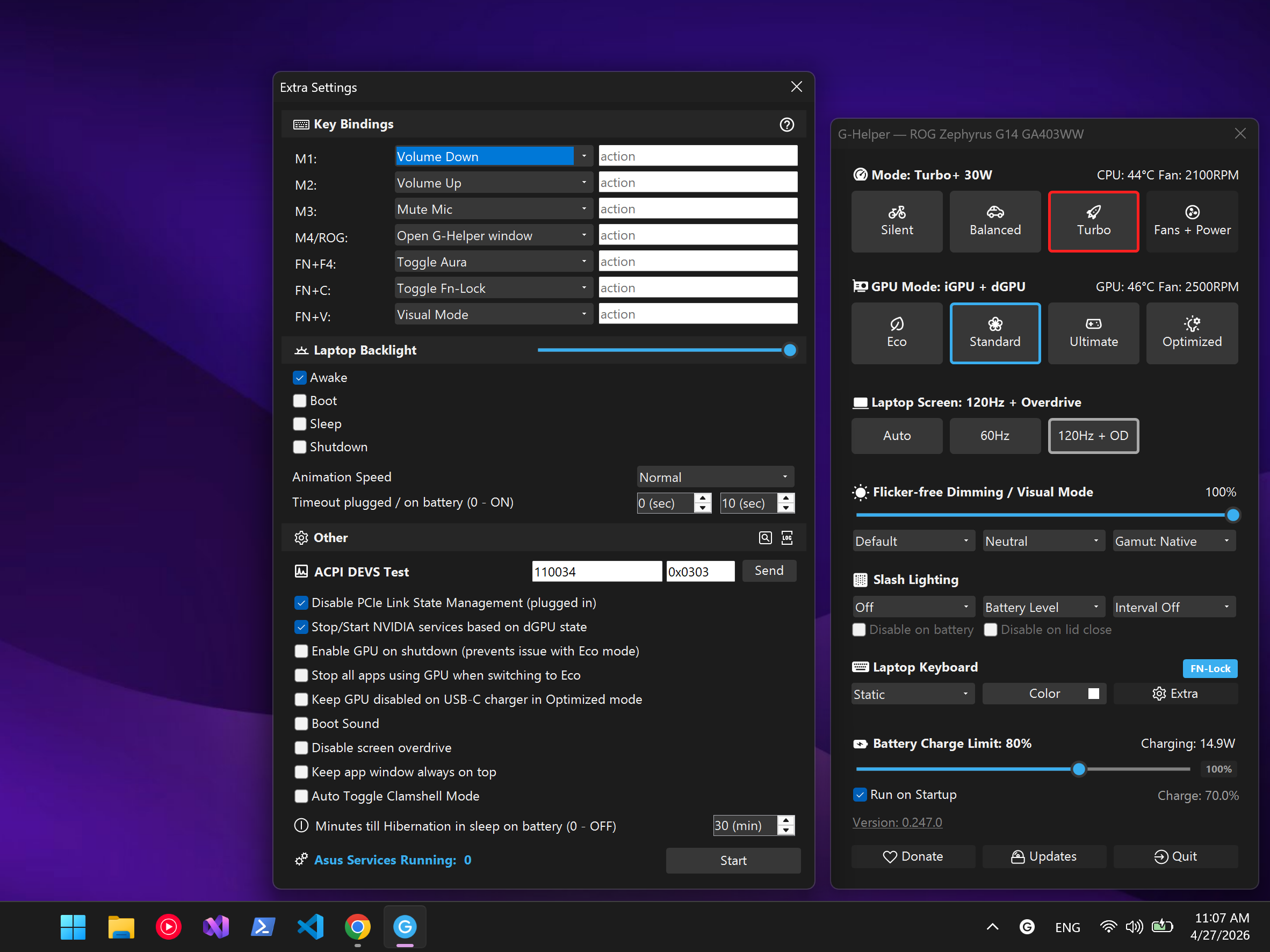
Custom hotkey actions
Select Custom next to appropriate hotkey under Extra settings and do one of the following:
- To run any custom application - put a full path to exe into
actiontext field, preferably in quotes, for example:
"C:\Program Files\EA Games\Battlefield 2042\BF2042.exe"
- To simulate any windows key or key-combination - put appropriate keycode(s) into the “action” field separated by space.
For example
0x2CforPrint Screenor0x11 0xA0 0x31forCtrl+Shift+1
Full list of keycodes https://learn.microsoft.com/en-us/windows/win32/inputdev/virtual-key-codes