Troubleshooting
NOTE: This section is not related to G-Helper anyhow, but since people often come to this repository asking about general problems with their laptops I have listed the most frequent troubleshooting advice that I can give.
Hard reset / Embedded Controller (EC) reset
Most of Asus laptops have an option to do a hard reset that can be handy sometimes. It doesn’t touch your data, but resets all main hardware-related things (enables your dGPU, wakes up wifi/bt adapter if it has hanged for some reason, etc.).
- Turn OFF laptop
- Press and hold the “power” button for 30-40 seconds
- Then boot normally (it will take a bit longer to boot)
https://www.asus.com/support/faq/1050239/
Reinstalling Asus System Control Interface
This “driver” is needed for both G-Helper and Armoury to work. If it’s installation is damaged by some reason, you can try to reinstall it.
- Open Windows Device Manager
- Right click on
System Devices->ASUS System Control Interface v3 - Click
Uninstall Deviceand checkAttempt to remove driver - Download latest Asus System Control Interface from Asus website, and install normally
https://www.asus.com/support/faq/1044851/
Resetting windows power plan to defaults
Copy and paste the command below into Windows Terminal or Powershell as Admininstrator. Avoid adding extra spaces in the end!
powercfg -restoredefaultschemes
Reinstalling GPU drivers
For AMD devices (including ones who use integrated graphics) you can use AMD official cleanup utility to completely uninstall existing drivers from safe mode. After that you can download and install latest official drivers from AMD website
For NVidia / Intel devices you can use the Display Driver Uninstaller app to completely uninstall existing drivers. After that you can download and install latest official drivers from Nvidia website
Note
It’s better to use DDU in windows safe mode, and disable windows Drive Encryption prior to rebooting into safe mode, to avoid resetting windows PIN
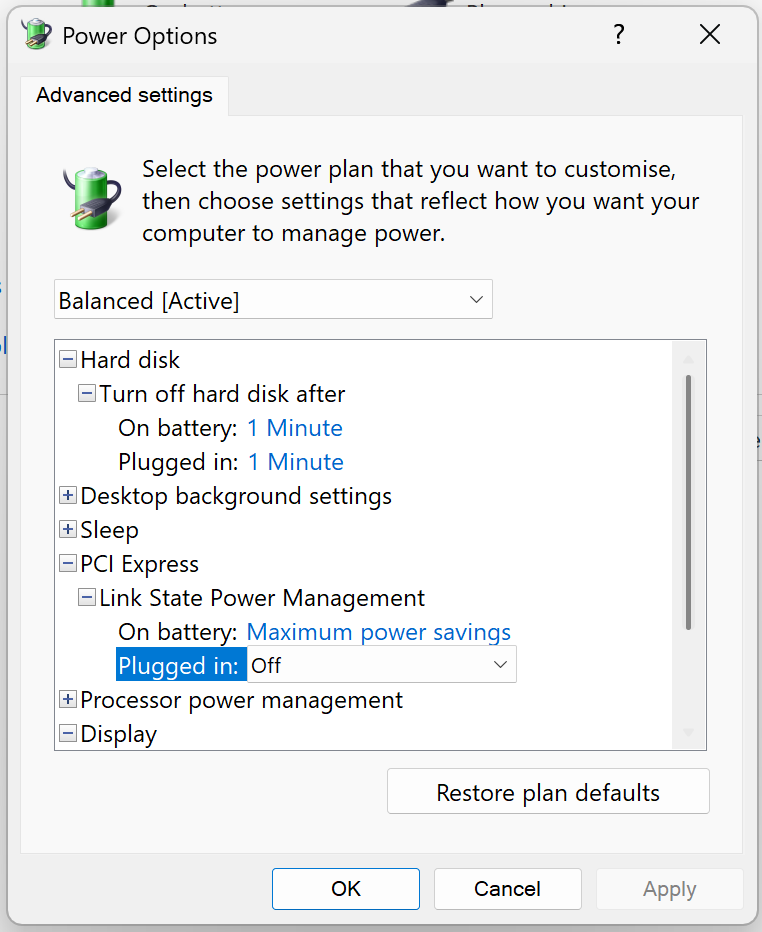
Disable Link State Power Management
This can help if NVidia GPU acts strange after going into sleep or waking up
Repair corrupted system files
Run following commands in Windows Terminal or Powershell as Admininstrator
DISM.exe /Online /Cleanup-image /Restorehealth
sfc /scannow